How to Turn WhatsApp Messages Into Zendesk Support Tickets Automatically in 2026 | Whatsboost
Learn how to automatically turn WhatsApp messages into Zendesk support tickets in 2026. Discover step-by-step setup, practical workflows, key benefits, and how Whatsboost powers seamless WhatsApp to Zendesk ticket automation for Indian businesses.
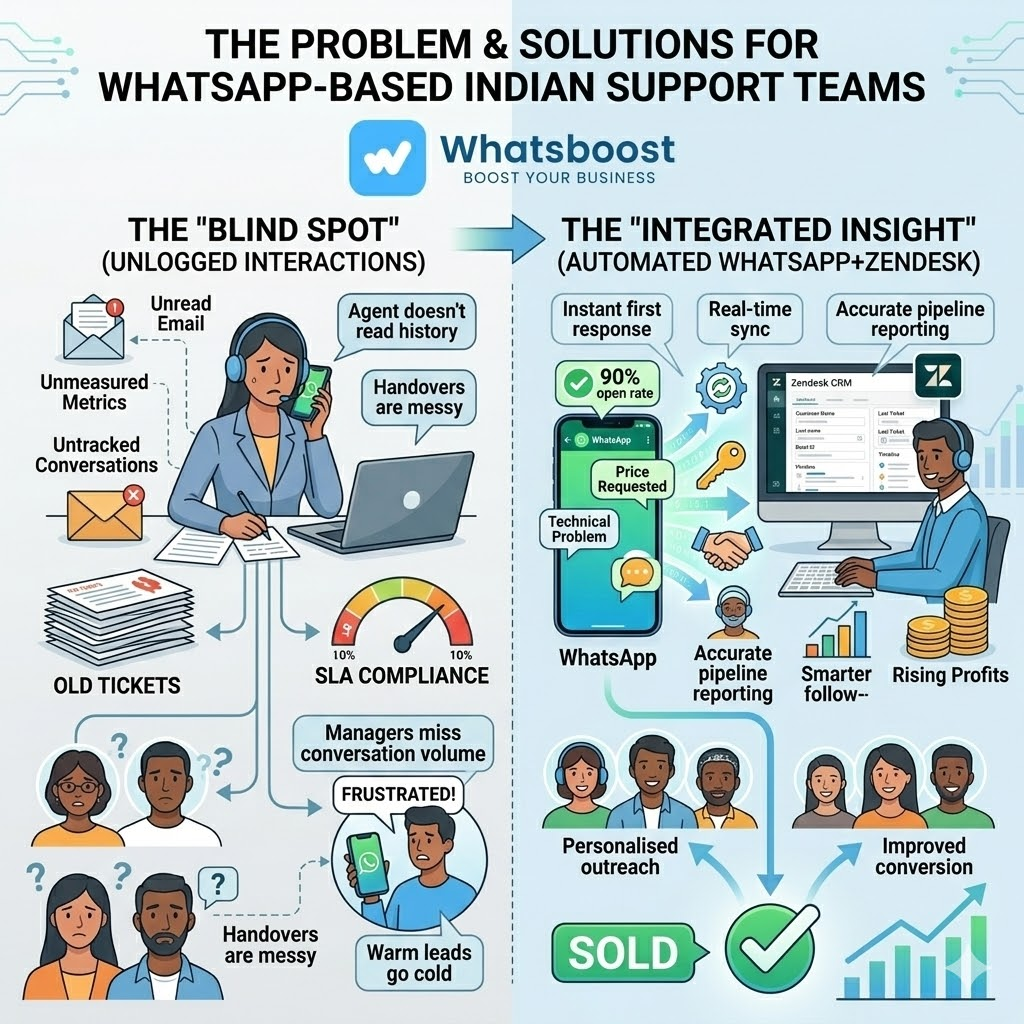
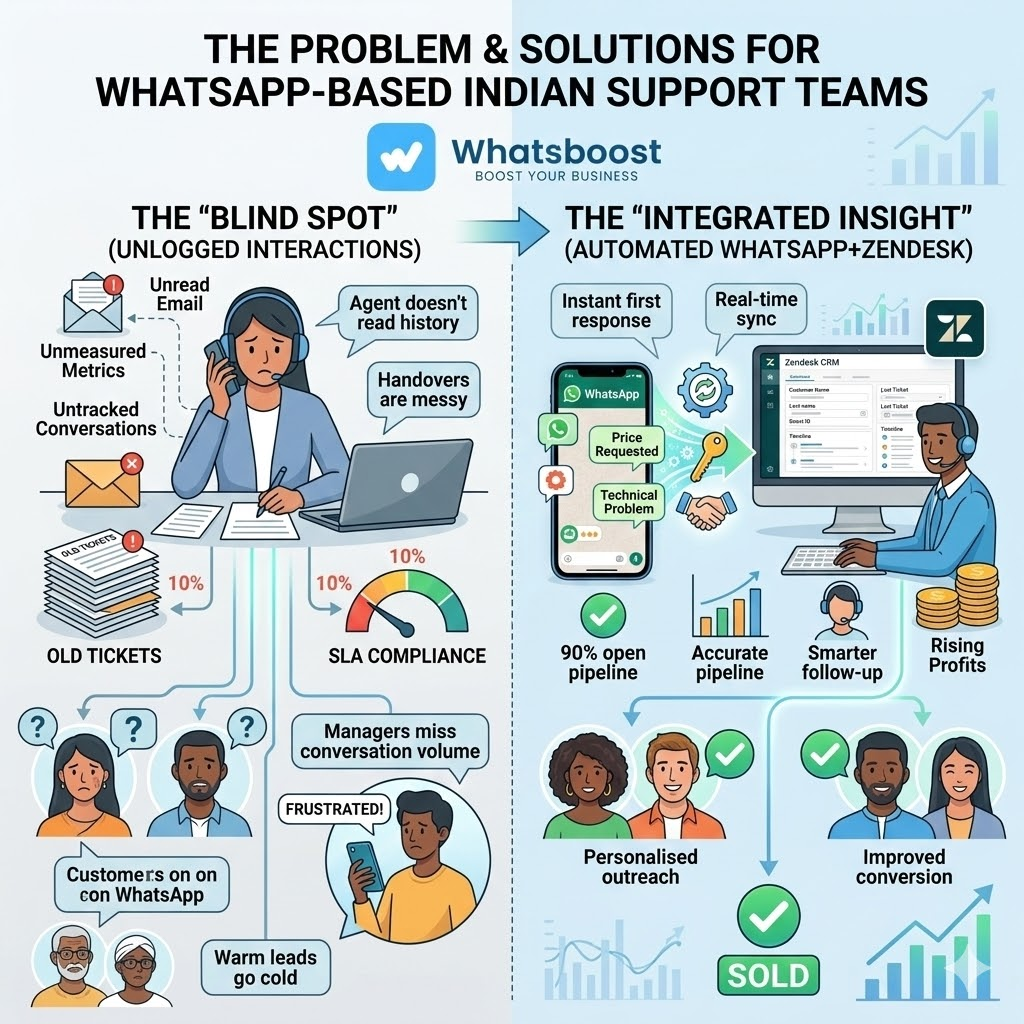
Every Indian business using WhatsApp for customer support faces the same operational friction: customers send messages, agents read them, and then — if everything goes well — someone manually creates a Zendesk ticket. If everything does not go well, the message is handled informally, never logged, and disappears into chat history when the conversation fades.
This gap between WhatsApp communication and structured Zendesk ticketing is costing businesses more than they realise. Unlogged interactions mean missing SLA compliance data. Manually created tickets mean inconsistent information quality. And conversations that fall through the cracks mean customers who never received a proper resolution — silently churning while your support metrics look clean because the ticket was never created.
In 2026, turning WhatsApp messages into Zendesk support tickets automatically is not a technical luxury — it is a support operations standard. This blog explains exactly how to build this automation, and how Whatsboost provides the WhatsApp Business API layer that makes it work reliably at scale.
Why Automatic WhatsApp to Zendesk Ticket Creation Matters
Before diving into the how, it is worth being precise about what automatic ticket creation actually solves for Indian support teams.
It eliminates manual logging entirely. When every WhatsApp message that qualifies as a support interaction automatically creates a Zendesk ticket, agents spend zero time on administrative data entry. They focus on resolution — not documentation.
It makes SLA tracking possible for WhatsApp. Without a Zendesk ticket, there is no SLA clock. When WhatsApp messages become tickets automatically, every customer interaction on WhatsApp is subject to the same response time and resolution standards as every other support channel — creating genuine accountability and consistent customer experience.
It prevents conversations from being lost. A WhatsApp message seen and not acted on is invisible to everyone else on the team. An automatically created Zendesk ticket is visible to the entire support queue — ensuring every customer interaction gets the attention it deserves regardless of which agent first read the message.
It enables complete customer history. When WhatsApp interactions are consistently logged in Zendesk, every future interaction with that customer is informed by everything that came before — building the contextual, personalised support experience that drives customer loyalty.
How WhatsApp to Zendesk Automatic Ticket Creation Works
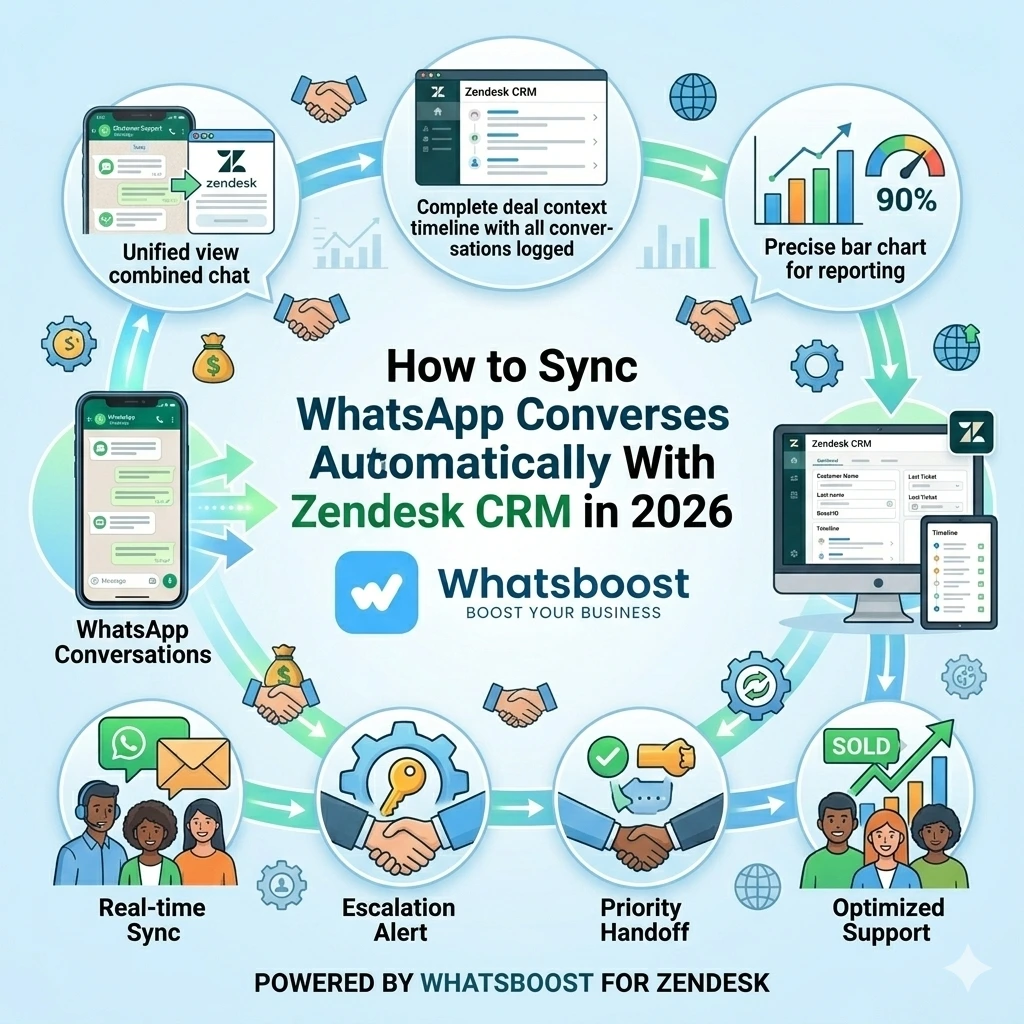
The automation connects three components: Whatsboost's WhatsApp Business API, a data-routing layer, and Zendesk's ticketing API. Here is the complete flow.
Step 1 — Customer Sends a WhatsApp Message A customer messages your WhatsApp Business number with a support query, complaint, or service request.
Step 2 — Whatsboost Captures the Message and Fires a Webhook Whatsboost receives the incoming message through the WhatsApp Business API and immediately fires an outgoing webhook containing the customer's phone number, name (if available), message content, and timestamp.
Step 3 — Automation Platform Processes the Webhook Zapier, Make, or Pabbly Connect receives the webhook and executes a sequence of logic steps: searching Zendesk for an existing customer record matching the phone number, determining whether an open ticket already exists for this customer, and then either creating a new ticket or appending the message to the existing one.
Step 4 — Zendesk Ticket Is Created and Assigned A new Zendesk ticket is created — pre-populated with the customer's name, phone number, message content, channel tag (WhatsApp), and any priority or category classification based on keywords detected in the message. The ticket is automatically assigned to the appropriate support queue or agent based on your routing rules.
Step 5 — Customer Receives an Instant Acknowledgement on WhatsApp Simultaneously, Whatsboost sends an automated WhatsApp message to the customer confirming their message has been received — including a ticket reference number and an expected response time. The customer feels acknowledged immediately, even before a human agent has reviewed the ticket.
Step 6 — Agent Resolves the Ticket and Customer Is Notified on WhatsApp When the agent updates or resolves the ticket in Zendesk, an automated WhatsApp message is sent to the customer via Whatsboost — keeping them informed throughout the resolution process without the agent needing to switch platforms.
Setting Up WhatsApp to Zendesk Automatic Ticket Creation With Whatsboost
Step 1: Activate WhatsApp Business API via Whatsboost
Whatsboost is an authorised WhatsApp Business Solution Provider that activates your WhatsApp Business API with guided onboarding. This is the essential first step — without the API, automated message capture and Zendesk integration is not achievable. Visit Whatsboost.in to get started.
Step 2: Set Up Whatsboost Shared Team Inbox
Configure Whatsboost's shared team inbox as the central hub for all incoming WhatsApp customer messages. Assign your support agents, set up internal labelling conventions — such as "Billing," "Technical," "Urgent," "General Enquiry" — and define escalation rules that will feed into your Zendesk ticket routing logic.
Step 3: Enable Outgoing Webhooks in Whatsboost
In your Whatsboost settings, activate outgoing webhooks that fire on every new incoming WhatsApp message. Configure the webhook payload to include all relevant data: phone number, customer name, message content, timestamp, conversation label, and the Whatsboost agent assigned to the conversation.
Step 4: Build the Zendesk Ticket Creation Workflow
In Zapier, Make, or Pabbly Connect, create the following automation logic:
- Trigger — New webhook received from Whatsboost
- Action 1 — Search Zendesk for an existing contact matching the phone number
- Action 2 — If a contact exists, check for an open ticket; if found, add the message as a note to the existing ticket
- Action 3 — If no open ticket exists, create a new Zendesk ticket with the message content, customer details, and channel tag
- Action 4 — Apply ticket priority and category based on keywords detected in the message content
- Action 5 — Trigger Whatsboost to send an automated acknowledgement WhatsApp message to the customer
Step 5: Configure Ticket-to-WhatsApp Update Notifications
Add a reverse automation that listens for Zendesk ticket status changes — such as "In Progress," "Pending Customer Response," or "Resolved" — and triggers corresponding WhatsApp messages to the customer via Whatsboost, keeping them informed in real time throughout the resolution journey.
4 Advanced Ticket Automation Workflows
Smart Ticket Priority Based on Message Keywords
Configure your automation to detect urgency keywords in incoming WhatsApp messages — "urgent," "broken," "not working," "still waiting," "escalate" — and automatically assign a high or critical priority level to the Zendesk ticket created. Support managers receive a simultaneous WhatsApp alert for every high-priority ticket, ensuring no urgent customer situation waits in a standard queue.
Duplicate Ticket Prevention for Repeat Contacts
When a customer sends a follow-up WhatsApp message about an unresolved issue, the automation detects the existing open Zendesk ticket for that phone number and appends the new message as an update — rather than creating a duplicate ticket. Agents see the full conversation thread in one place, and the customer is not asked to re-explain their issue from the start.
Category-Based Ticket Routing to Specialist Teams
Using message content and Whatsboost labels, tickets can be automatically routed to specialist Zendesk queues — billing queries to the accounts team, technical issues to the engineering support team, delivery complaints to the operations team. The right agent receives the right ticket from the first contact, reducing resolution time and internal ticket reassignment. Whatsboost supports the labelling and keyword detection that drives this routing logic accurately. Learn more at Whatsboost.in.
Post-Resolution CSAT Collection via WhatsApp
When a Zendesk ticket is marked resolved, Whatsboost automatically sends a CSAT survey to the customer on WhatsApp — a simple one-tap rating request. The response is captured and automatically logged to the resolved Zendesk ticket as a satisfaction score, building your CSAT database without any manual follow-up step from the support team.
Best Practices for WhatsApp to Zendesk Ticket Automation
Define your ticket creation threshold clearly. Not every WhatsApp message needs to become a Zendesk ticket — a customer asking for your business hours does not require a support ticket. Configure your automation to create tickets only for messages that qualify as service requests, complaints, or issues requiring follow-up, using keyword detection or conversation labels to distinguish them.
Include the WhatsApp message content in full. Ensure your automation captures the complete message content in the Zendesk ticket body — not just a summary. Agents need the exact words the customer used to provide the most accurate, contextual response.
Use consistent Whatsboost labels to drive Zendesk tags. Train your support agents to apply standard Whatsboost conversation labels consistently. These labels should map directly to Zendesk ticket tags — enabling filtering, reporting, and routing that is accurate and meaningful.
Test the duplicate prevention logic thoroughly. The most common failure point in WhatsApp to Zendesk ticket automation is duplicate ticket creation for returning customers. Test your phone number matching and open ticket detection logic with multiple customer scenarios before going live to ensure clean, consistent behaviour.
Every WhatsApp Message Your Customers Send Deserves a Ticket
In 2026, customers do not distinguish between support channels — they expect the same quality of service whether they email, call, or WhatsApp. When WhatsApp messages automatically become Zendesk support tickets, you deliver on that expectation: every message is logged, every SLA applies, every resolution is tracked, and every customer receives the consistent, accountable support experience your business promises.
With Whatsboost powering your WhatsApp Business API and your ticket automation workflows, this standard is achievable for any Indian business — without manual effort, without dropped conversations, and without the operational blind spots that come from running WhatsApp support outside your Zendesk system.
Visit Whatsboost.in and start turning every WhatsApp message into a tracked, resolved Zendesk support ticket today.
Want to automate WhatsApp for your business?
Set up campaigns, replies, and follow-ups in minutes.